Teams Management

Learn how to manage your team after creation: invite and manage members, create and manage roles, edit and delete the team, etc.

The Teams feature allows you to collaborate with others under a shared workspace, making it easier to manage resources, permissions, and responsibilities across multiple users.

This documentation covers how you can:

  • Manage teams

  • Manage team members

  • Manage team roles


Manage Teams

After creating a teamarrow-up-right, you become the team Owner.

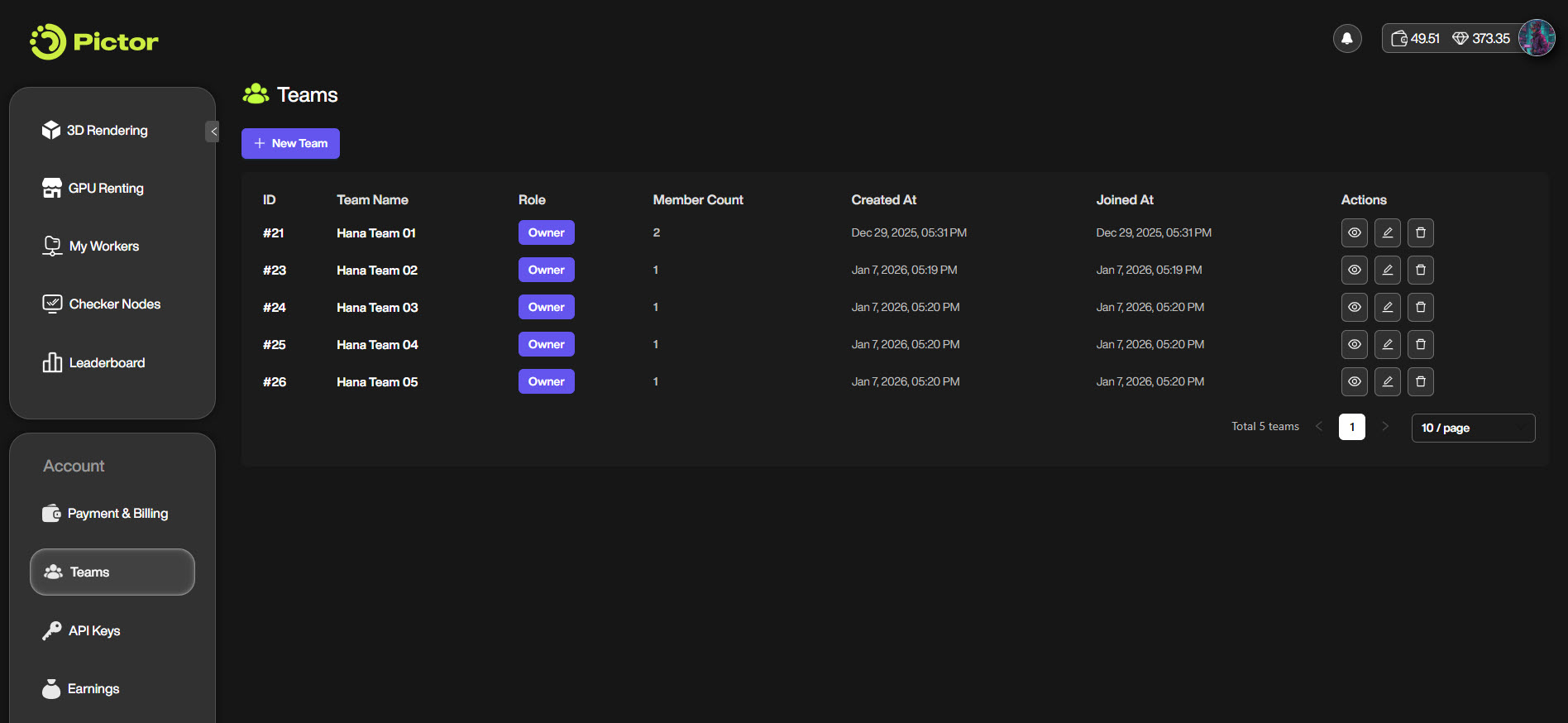
Under personal account mode, the Teams page displays a list of all teams you have created.

For each team, you can see basic information such as:

  • Team ID

  • Team name

  • Your role in the team

  • Team's member count

  • Creation time

  • The time you joined the team

You can also perform several management actions on each team, including:

  • View team

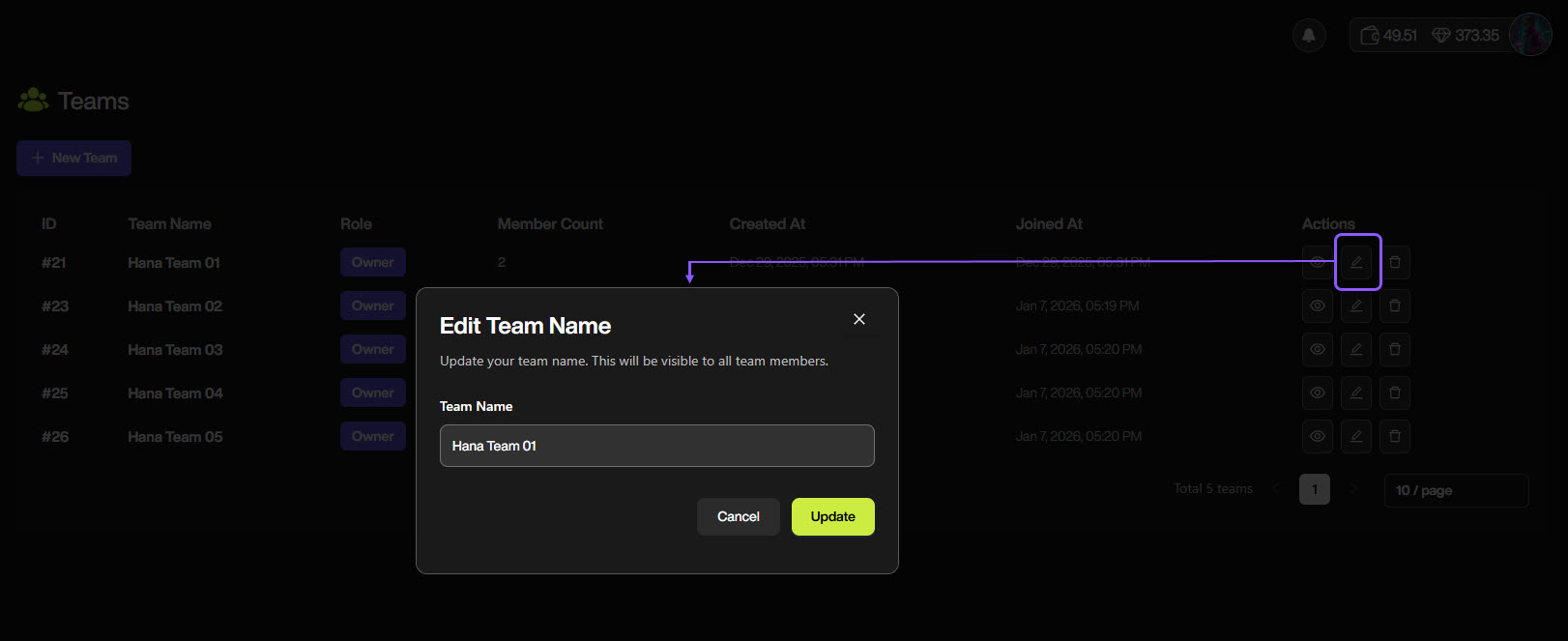
  • Edit team

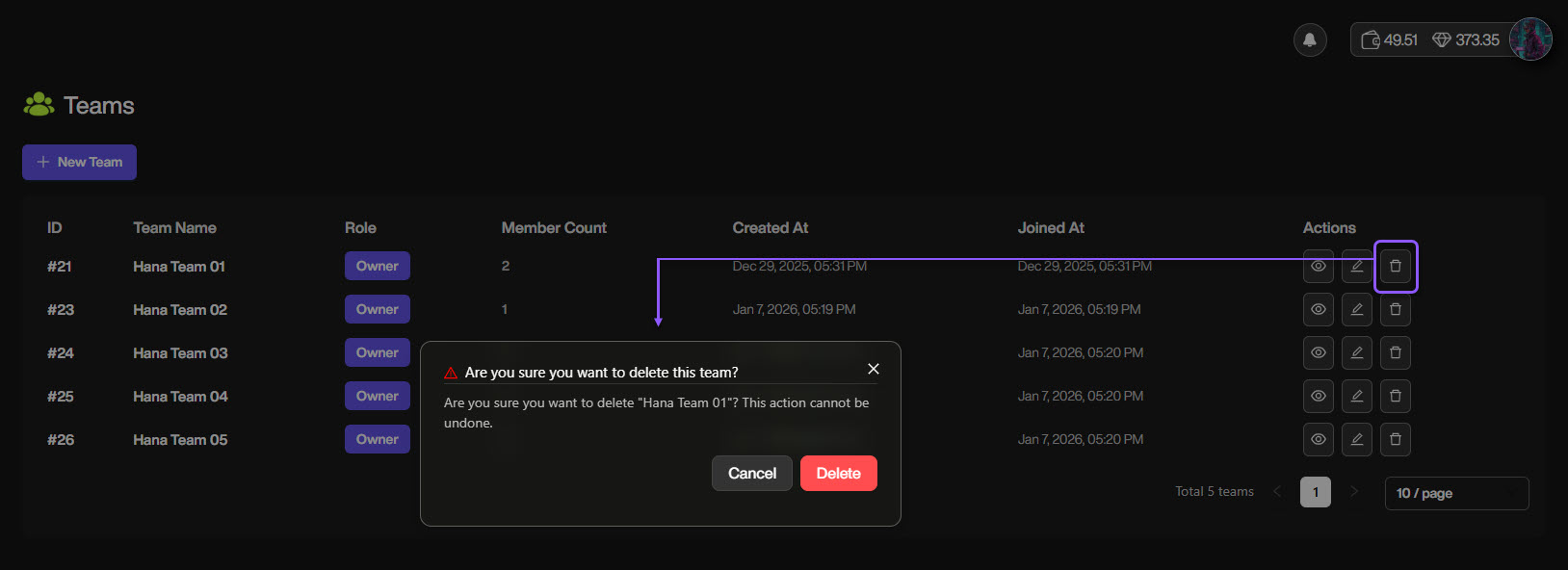
  • Delete team

View Team

You can open a team to view its details.

Inside a team, there are two main tabs:

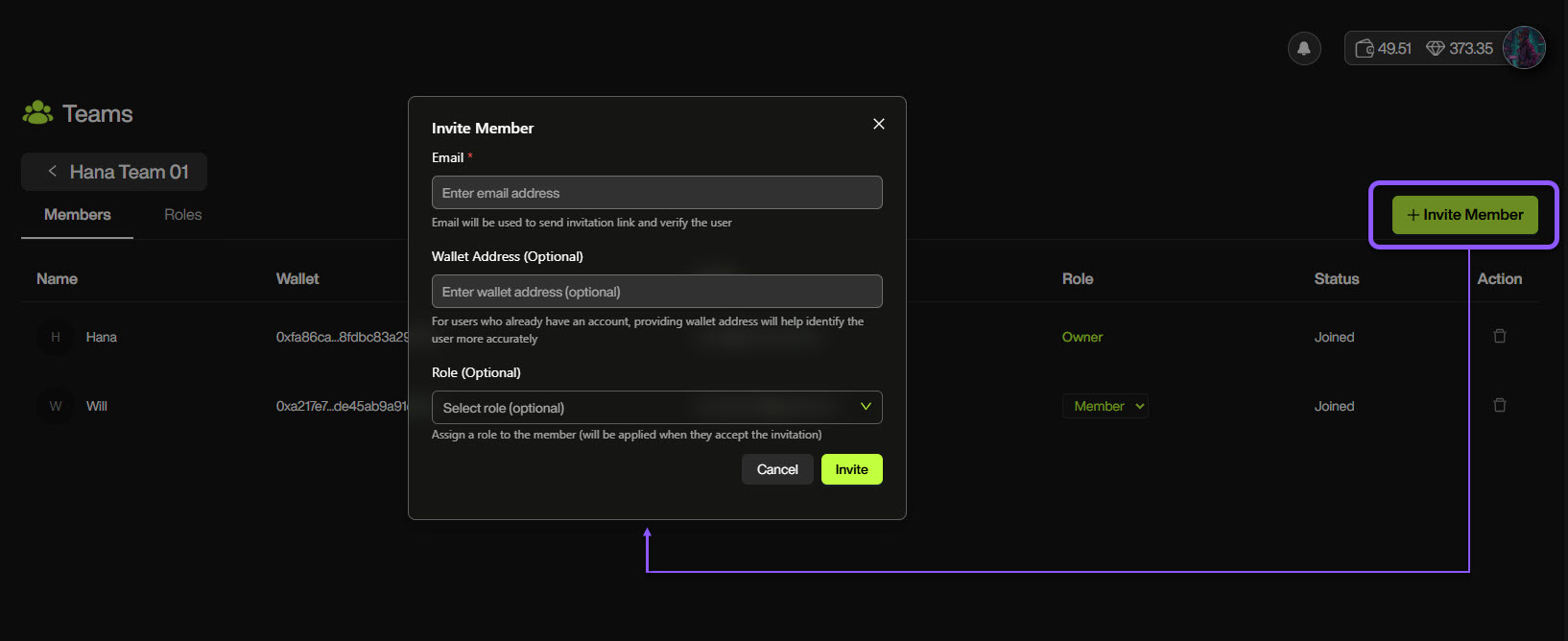
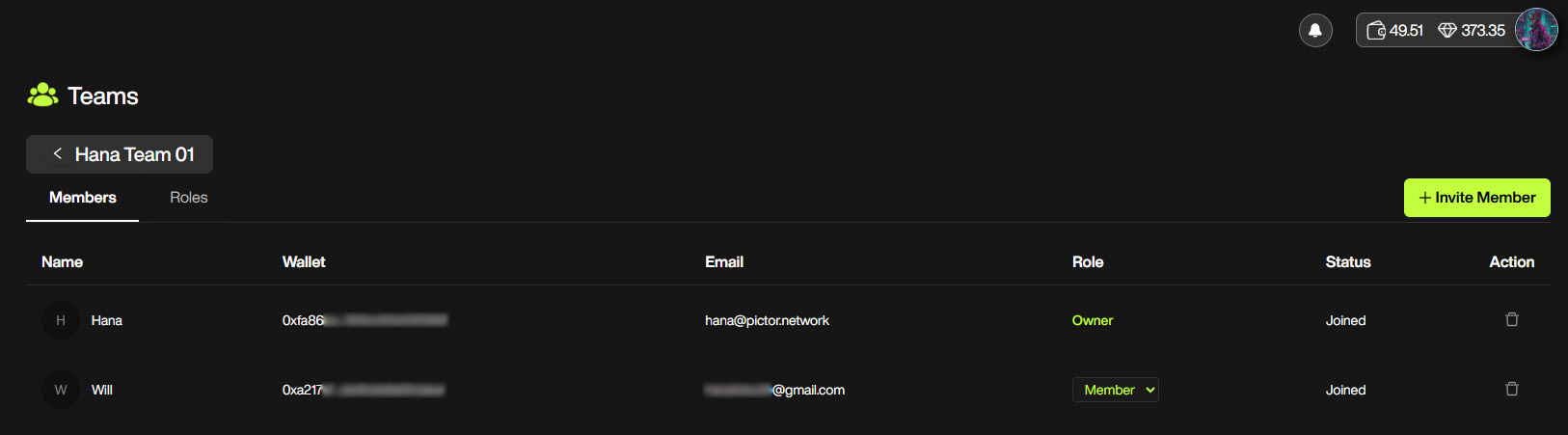
  • Members: Displays the list of team members along with their information. You can also invite new users to join the team using the Invite Member button.

Members tab
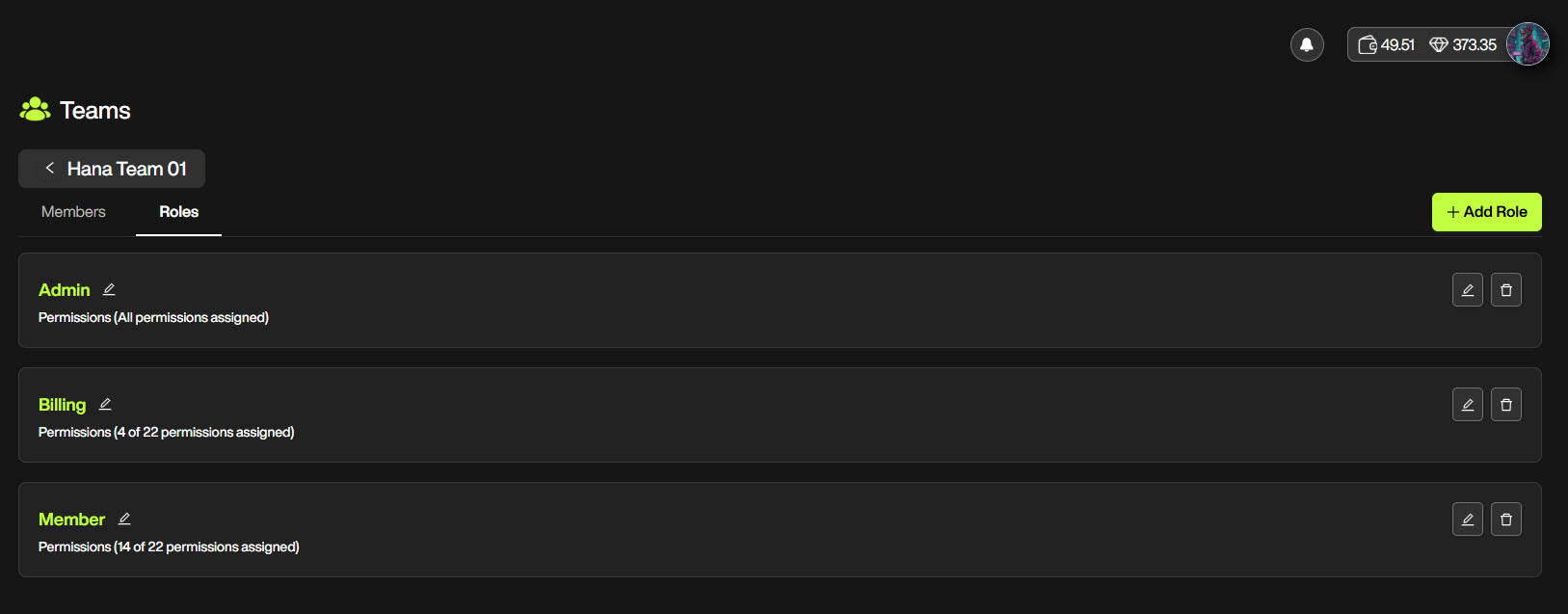
  • Roles: Displays all roles defined within the team. You can create new roles and manage permissions using the Add Role button.

Roles tab

Edit Team

You can edit the team name at any time.

Renaming a team helps you organize teams based on projects, departments, or internal workflows.

Delete Team

You can delete a team if it is no longer needed.

circle-exclamation

Manage Team Members

Team members are managed in the Members tab inside a team.

Members tab

This tab allows you to invite new members to join the team, view joined members' information, manage their roles, and remove members from the team.

Members list

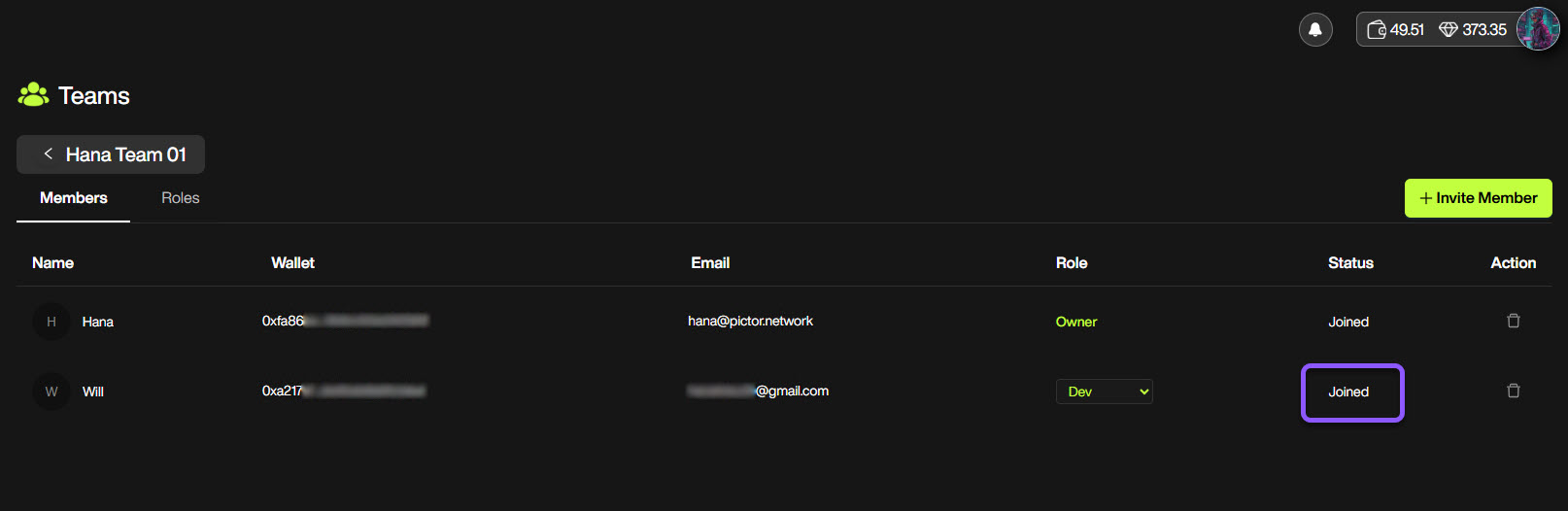
The Members tab displays all members in the team with the following information:

  • Name

  • Wallet address

  • Email

  • Assigned role

  • Status

This list helps you quickly understand who is part of the team and what access level each member has.

Invite a member

To add a new member to the team, click Invite Member.

Invite a new member to join the team

After inviting, they will appear in the members list once they have successfully joined the team.

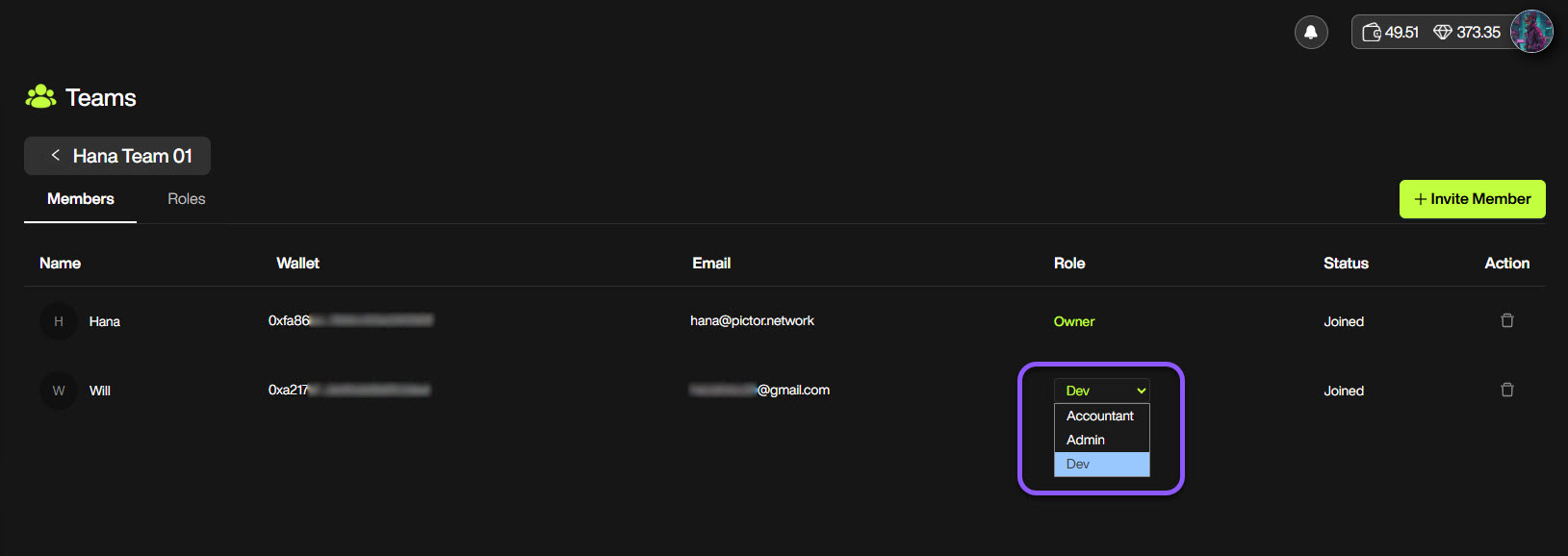
Assign or update member roles

Each member (except the Owner) has an assigned role.

Change a member's role

You can change a member’s role directly from the Role column by selecting another available role. Role permissions are defined in the Roles tab and apply immediately after being updated.

Member status

The Status column shows the current state of each member, such as whether they have already joined the team.

Check the member's joining status

This helps you track active members in the team.

Remove a member

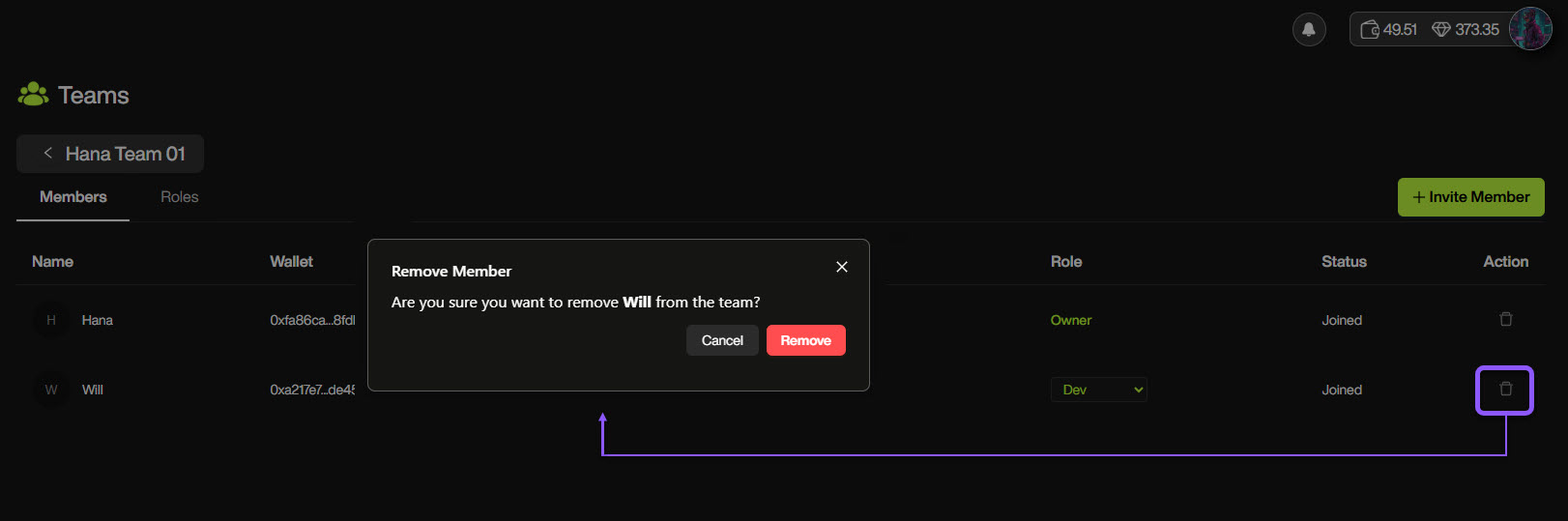
You can remove a member from the team using the Delete button in the Action column.

Remove a member from the team

Once removed, the member will no longer have access to the team or its resources.


Manage Team Roles

Team roles are managed in the Roles tab inside a team.

Roles define what actions members can perform within a team. Each role consists of a set of permissions that control access to different features and resources.

Roles list

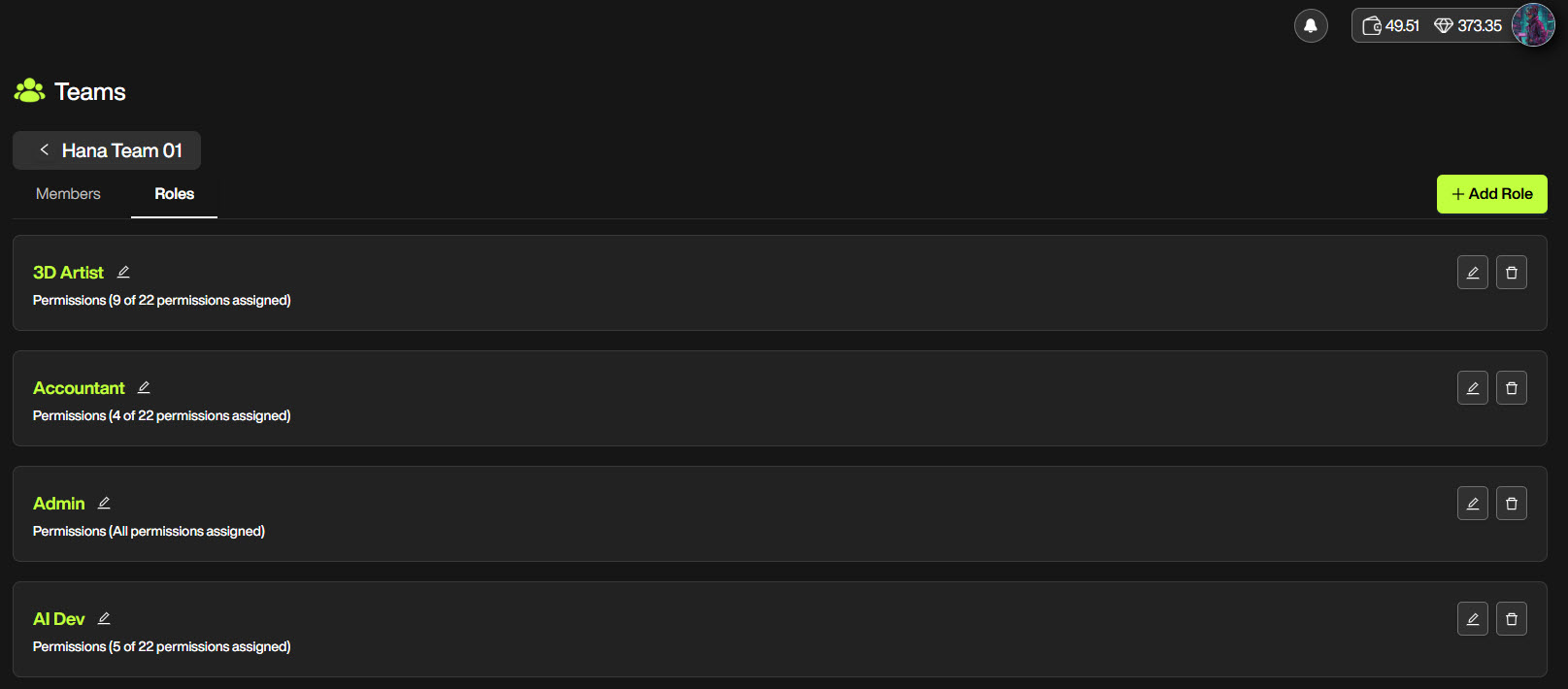
The Roles tab displays all roles available in the team, and helps you understand how access is structured across the team.

Team's roles list

For each role, you can see:

  • Role name

  • Number of permissions assigned

Default roles

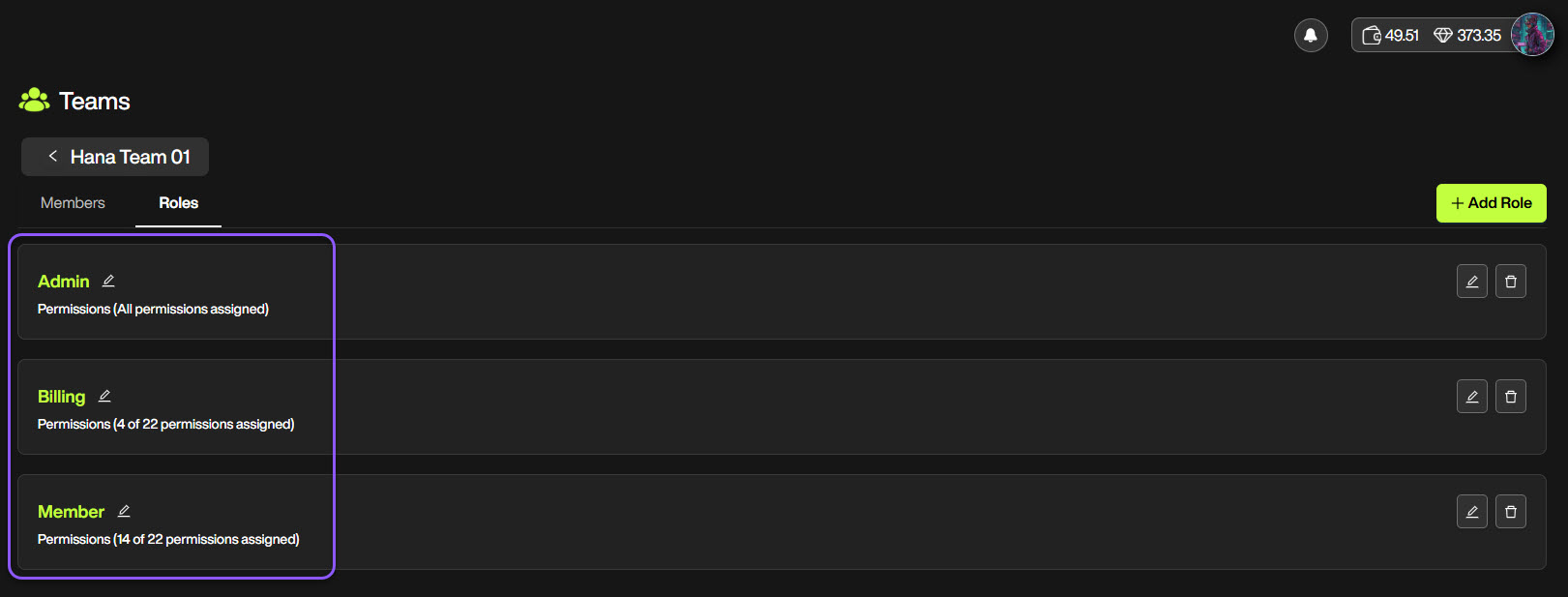
When a team is first created, there are three default roles available, including:

  • Admin – has all permissions assigned

  • Billing – has limited permissions related to billing

  • Member – has a standard set of permissions

Team's default roles

You can edit these default roles, such as changing their names, assigning different permissions to match your workflow.

Create a new role

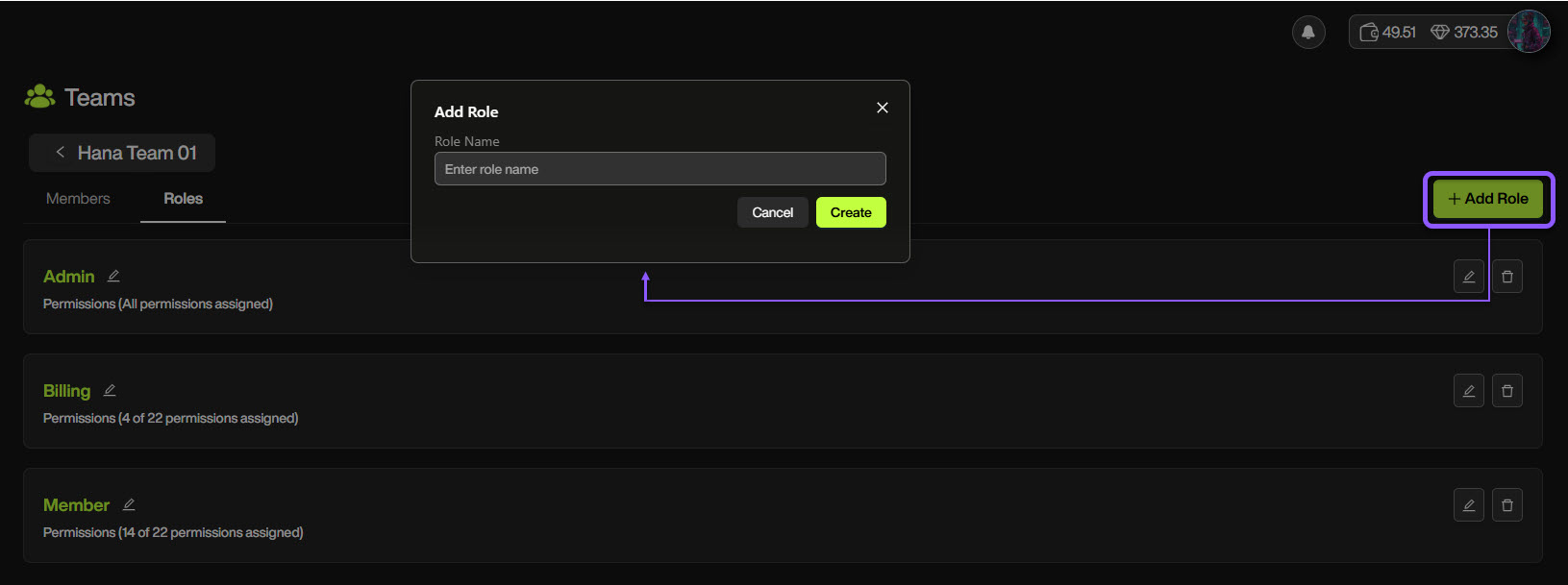
To create a new role, click Add Role.

When creating a role, you can:

  • Set a role name

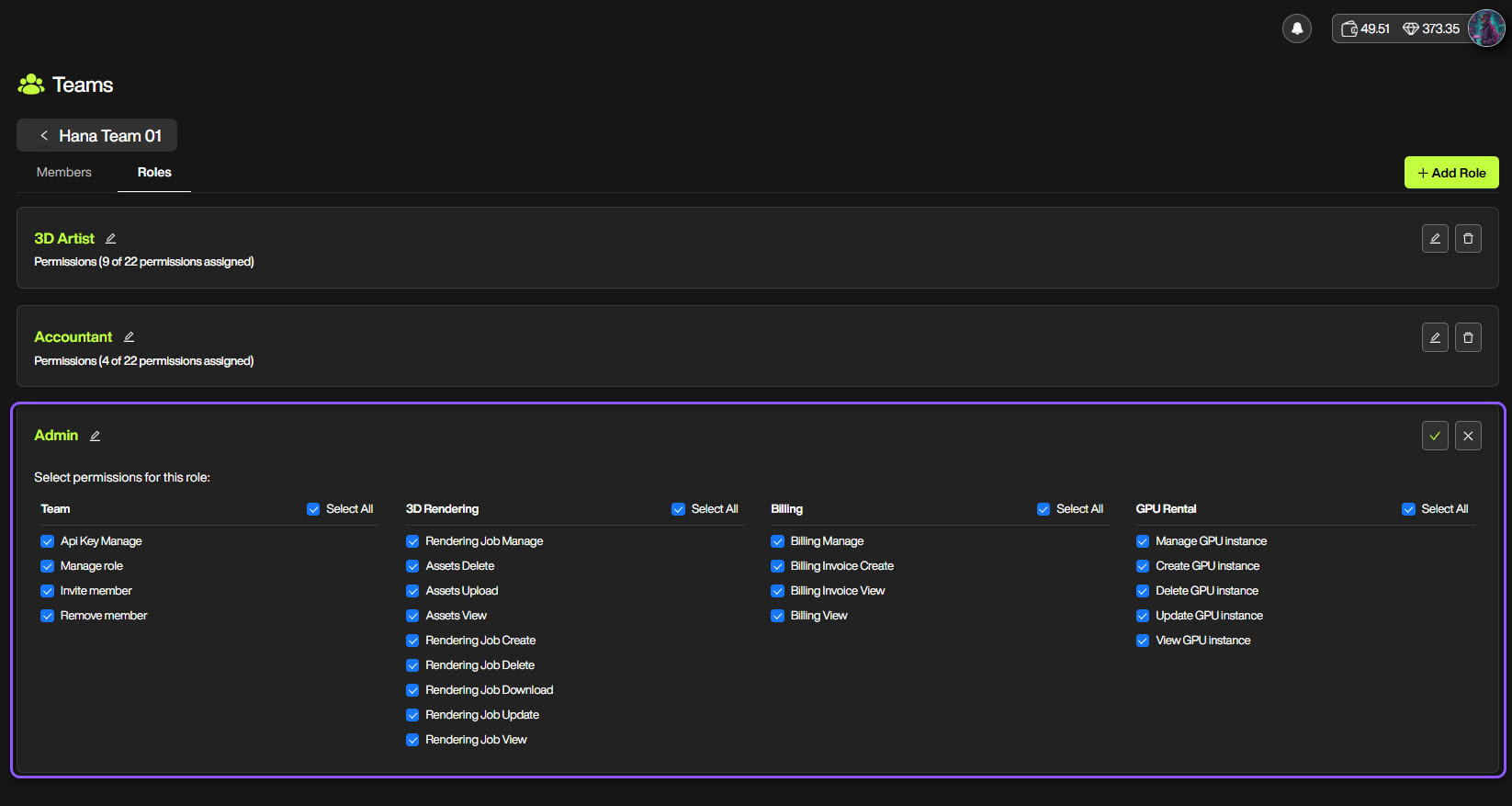
  • Select the permissions you want to assign

Set a role name
Assign role's permissions

This allows you to define access levels tailored to your team’s responsibilities.

Edit a role

You can edit an existing role to update its name or change its permissions.

Edit a role

Any changes to a role will apply to all members currently assigned to that role.

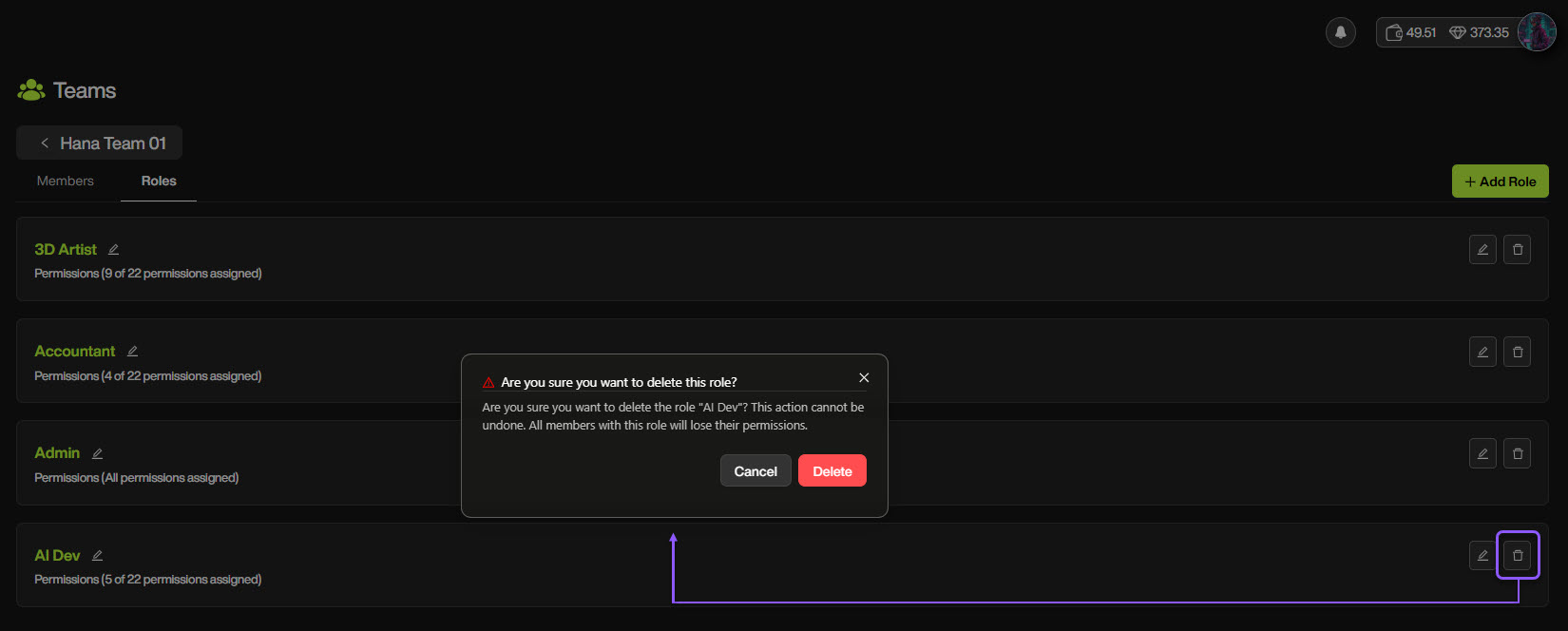
Delete a role

Delete a role

You can delete a role if it is no longer needed.

Last updated