> For the complete documentation index, see [llms.txt](https://docs.pictor.network/docs/llms.txt). Markdown versions of documentation pages are available by appending `.md` to page URLs; this page is available as [Markdown](https://docs.pictor.network/docs/reference/payment-and-billing.md).
# Payment & Billing
This page provides detailed information on the payment mechanism, service pricing logic, and a guide to the features available on your Payment & Billing page.
***
### Payment & Billing Mechanism
All transactions and service usage costs on Pictor are managed through your **Credit Balance**.
#### Payment Mechanism
* **Credit Top-up**: You purchase Credits to load into your Pictor account. The base exchange rate is 1 USD = 1 Credit and 1 USDT = 1 Credit.
* **Payment Methods**: We support top-ups via two main methods:
* **Crypto Payment** (USDT): You can deposit USDT directly from your Web3 wallet, which is used for account login.
* **Fiat Payment** (USD): You can top up USD via PayPal.
* **Credit Deduction**: Costs for using services (3D Rendering and GPU Renting) are deducted directly from your Credit Balance.
#### Billing Overview
* **Transaction History**: Recording all activities affecting your credit balance, including:
* **Payment**: Credit purchases (top-ups).
* **Charge**: Credit spent on services (e.g., 3D rendering, GPU renting).
* **Promotion**: Credits received through promotional programs or top-up bonuses.
* **Refunds** and other balance adjustments.
* **Invoice**: Every recorded activity includes an attached **Invoice**, allowing you to download the transaction details.
***
### Service Pricing Logic
The two main services on Pictor utilize different billing mechanisms with distinct cost components:
#### 1. 3D Rendering Service
This service uses the P**ost-Payment per Completed Task** mechanism.
* **Billing Point**: Credits are deducted immediately after each Task within a Job is successfully completed.
* **Cost Components**: The price is based on the total Compute resources (*GPU, CPU, RAM, Storage, and Rendering Time*) consumed to complete that specific Task.
* **Insufficient Credit Handling**:
* If your Credit Balance is insufficient to cover the next completed Task, the Job will be paused automatically.
* You can resume the paused job once you have added enough credits to your account.
#### 2. GPU Renting Service
This service uses the **Pre-Payment per Rental Period** mechanism, which requires upfront payment for the chosen rental period.
GPU Renting costs are divided into two main components:
* **Compute**: Cost for machine resources (GPU, VRAM, CPU, and RAM)
* **Storage**: Cost for disk data storage on the Instance
**⚠️ Billing Rules:**
* **Running Instance**: You are charged both the Compute Fee and the Storage Fee.
* **Stopped/Paused Instance**: You are NOT charged the Compute Fee, but you are STILL charged the Storage Fee for the allocated disk capacity.
**🚨 Termination Policy:**
* If your Credit Balance reaches 0, regardless of the instance status (Running or Paused), the instance will be **TERMINATED** (completely destroyed/deleted). The instance and all its contents (most importantly, the data) will be permanently lost.
{% hint style="warning" %}
**Warning**:
* Pictor will send notifications if you have enabled **Low Balance and Low Remaining Tim**e alerts in the [account settings](https://app.pictor.network/setting) page.
* You need to recharge credits to avoid machine termination or take necessary actions, such as backing up data.
{% endhint %}
***
### Payment & Billing Page
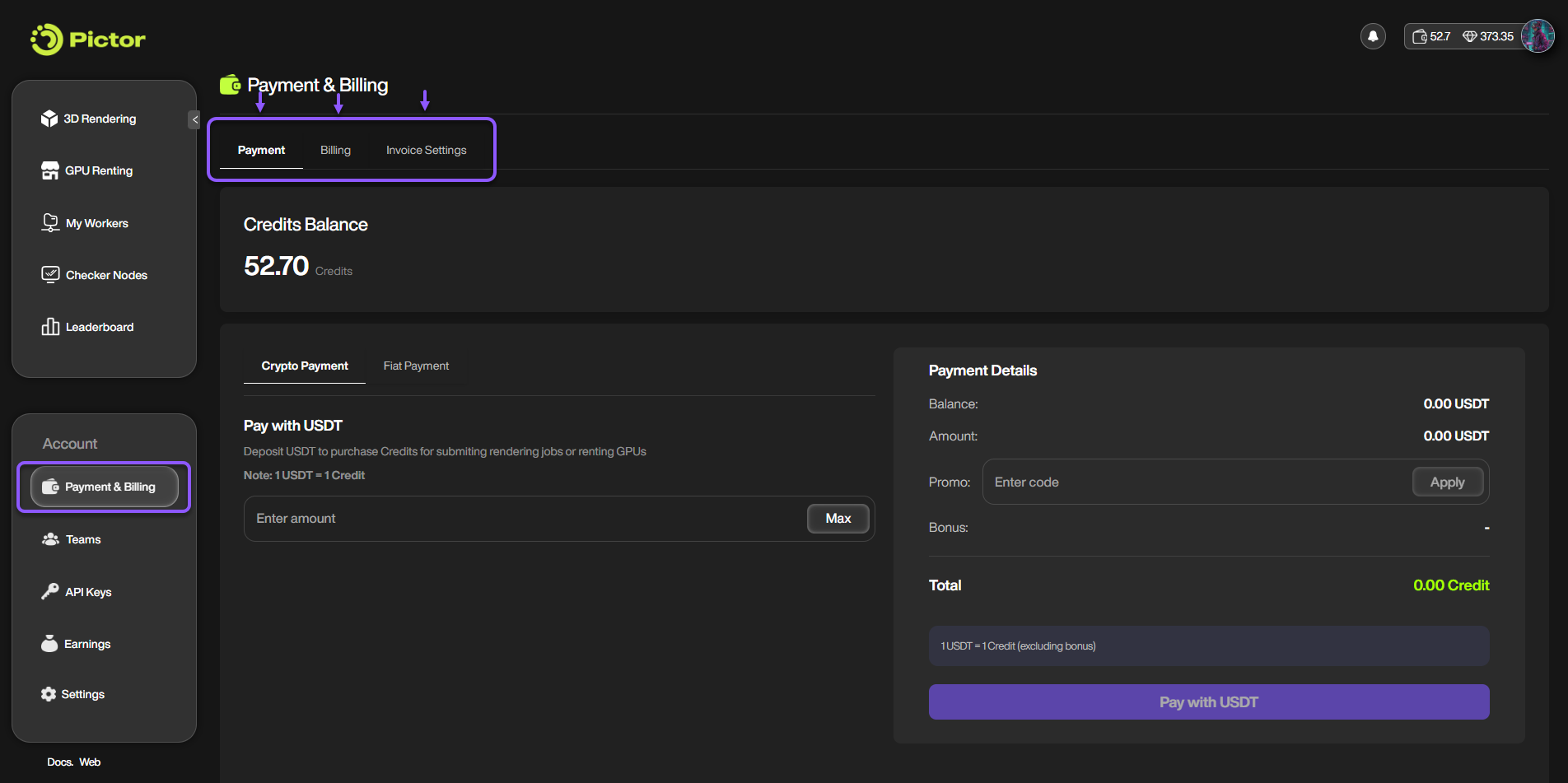
The Payment & Billing page in your account at [Pictor App](https://app.pictor.network/) is divided into three main tabs: Payment, Billing, and Invoice Settings.
#### 1. Payment Tab
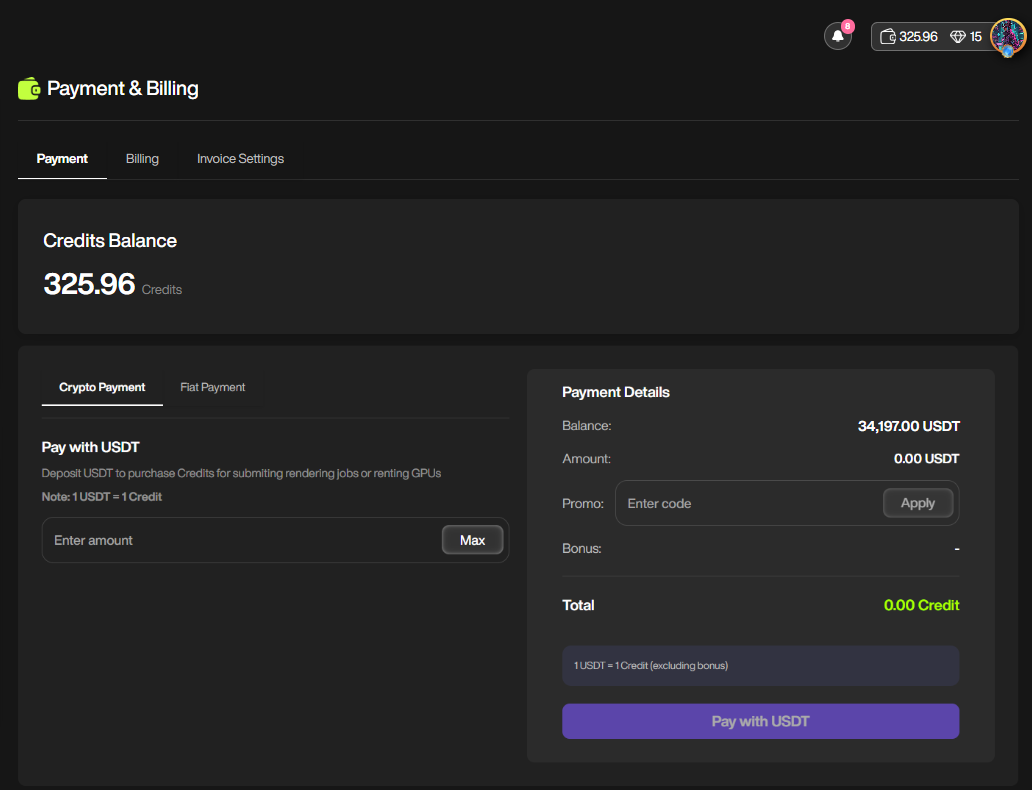
🔹 The payment tab is where you manage your Credit Balance and purchase more credits.
* **Credits Balance**: Displays your current total Credit balance.
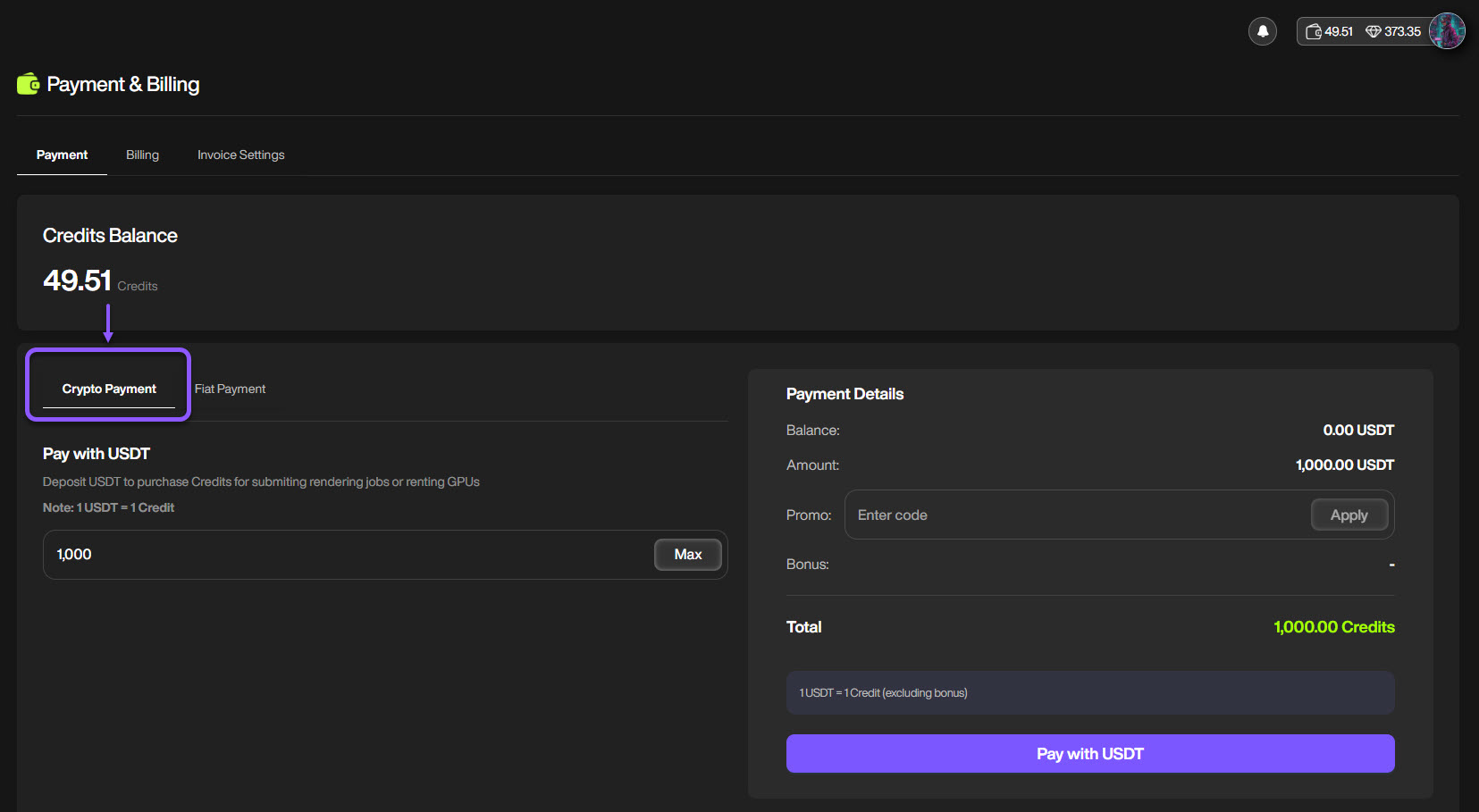
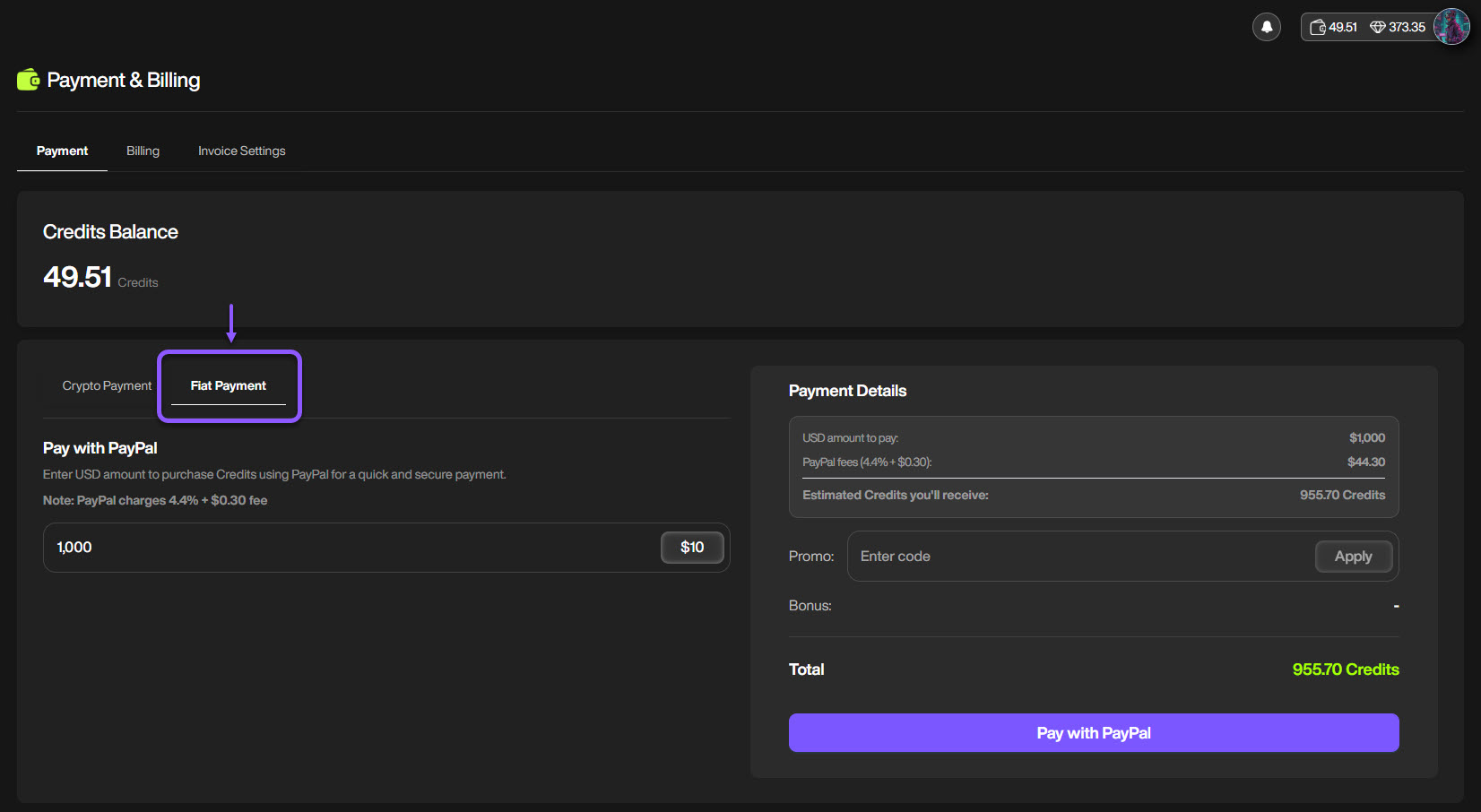
* **Crypto Payment / Fiat Payment**: Select your preferred payment method $$\implies$$Enter the amount of USDT/USD to deposit $$\implies$$The system will apply any current promotions.
Purchase credits using Crypto (USDT) with a promotion
🔹 Payment methods
Pictor currently supports two payment methods: **Crypto (USDT via the logged-in wallet)** and **Fiat (USD via PayPal).**
Purchase credits using Crypto (USDT)
Purchase credits using Fiat (USD) via PayPal
{% hint style="warning" %}
**Note**:
* 1 USDT = 1 Credit
* PayPal charges **4.4%** the payment amount + **$0.3** fee
{% endhint %}
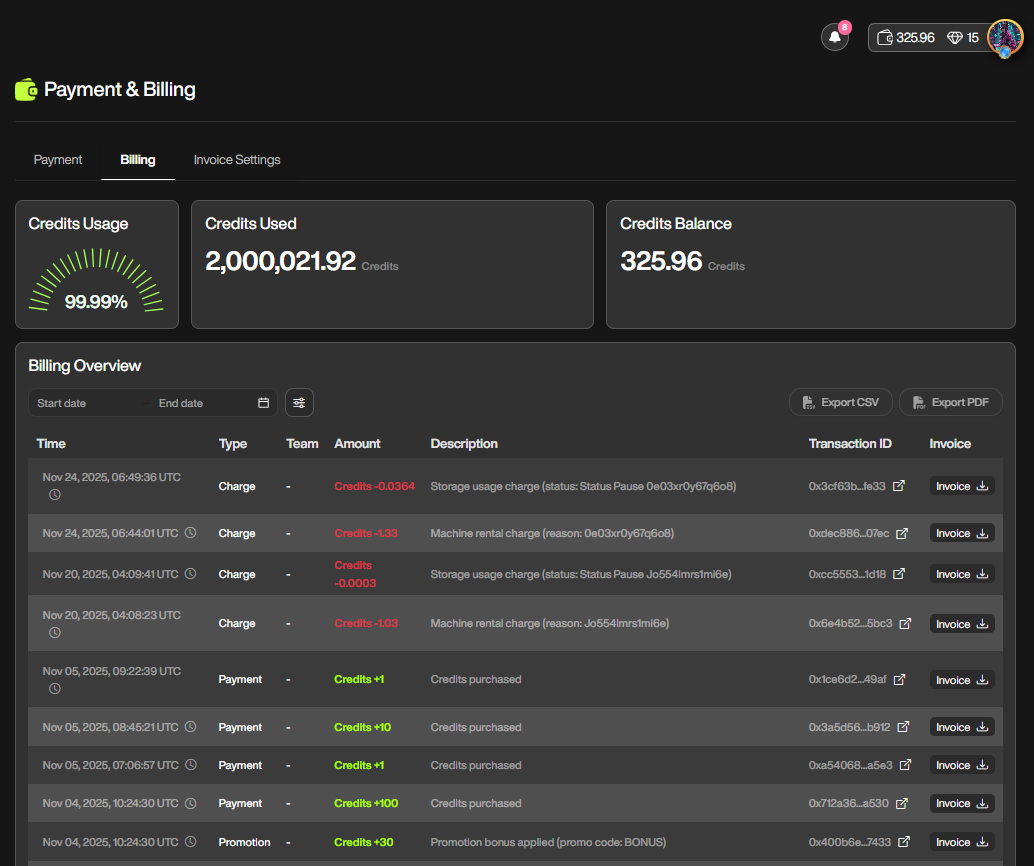
#### 2. Billing Tab
This is where you track your transaction history.
* **Credits Usage**: A chart showing the percentage of Credits used relative to the total top-up.
* **Credits Used**: Displays the total Credits spent.
* **Credits Balance**: Displays the remaining balance.
* **Billing Overview**: Detailed transaction history table:
* **Time**: Time of the transaction.
* **Type**: Transaction type (Charge - credit deduction, Payment - credit addition, Promotion, Refund, and Other).
* **Amount**: The quantity of Credits added (**+**) or deducted (**-**).
* **Description**: Detailed transaction description (e.g., `Machine rental charge`, `Storage charge`).
* **Transaction ID**: Link to view transaction on-chain.
* **Invoice**: Button to download the detailed invoice for that transaction.
#### 3. Invoice Settings Tab
This is where you set up the official information for invoice generation.
* Name
* Email (*required*)
* Address
* TAX information
{% hint style="warning" %}
Note: Changes on this tab only apply to invoices generated in the future.
{% endhint %}
***
### FAQs
What payment methods and currencies can I use to top up Credits?
Currently, you can top up Credits using two primary methods:
* **USDT** (Crypto Payment): You can top up Credits using USDT via the cryptocurrency wallet you have previously logged in with.
* **Transaction Fee**: Free (Pictor sponsors the network transaction fees).
* **USD** (Fiat Payment): You can top up Credits using USD via PayPal.
* **Transaction Fee**: You will be responsible for the PayPal processing fee, which is 4.4% of the top-up amount plus a fixed fee of $0.30.
What is the monetary equivalent of 1 Credit?
1 Credit is equivalent to 1 USD/USDT (excluding top-up bonuses or promotions).
Can I recover my GPU data if the machine is terminated due to insufficient credit?
No.
When a machine is TERMINATED (destroyed/deleted) because the Credit Balance reached zero, all Storage and data are permanently erased. You must monitor Low Balance/Low Remaining Time notifications to top up credits in time.
What do I need to do to get invoices with my company details?
You can go to the [Invoice Settings](https://app.pictor.network/payment-billing) tab and fill in all details, including Company Name, Address, and other relevant information. Subsequent invoices will use this information.
Am I charged any fees when my GPU Instance is 'stopped'?
You are NOT charged the Compute Fee, but you are STILL charged the Storage Fee for the allocated disk capacity.
How is the Storage Fee calculated?
The storage fee is calculated based on capacity per hour at a rate of 0.00028 credit/GB/hour.
How can I prevent my GPU Instance from being Terminated?
You should ensure your Credit Balance remains positive.
Don't forget to set up Low Balance and Low Remaining Time Notifications on the [Settings](https://app.pictor.network/setting) page and top up your credits when you receive an alert.