> For the complete documentation index, see [llms.txt](https://docs.pictor.network/docs/llms.txt). Markdown versions of documentation pages are available by appending `.md` to page URLs; this page is available as [Markdown](https://docs.pictor.network/docs/services/gpu-renting/connection-methods/rdp.md).
# RDP
Learn how to connect to Windows Instances on Pictor via RDP (Remote Desktop Protocol)
## About RDP
#### What is RDP?
**RDP (Remote Desktop Protocol)** is a proprietary network protocol developed by Microsoft, which provides a user with a graphical interface to connect to another computer over a network connection. It is the standard method for running a desktop session on a remote machine, allowing you to:
* **Work in a Graphical Environment**: Access a familiar, fully-featured Windows desktop remotely.
* **Run Applications and Commands**: Install and execute any application directly on the remote server.
* **Transfer Data**: Transfer files and clipboard content between your local machine and the remote instance.
* **Manage Full Sessions**: Control a complete desktop session, including sound and peripheral redirection.
#### RDP on Pictor
RDP is the primary connection method for Windows Instances rented on Pictor.
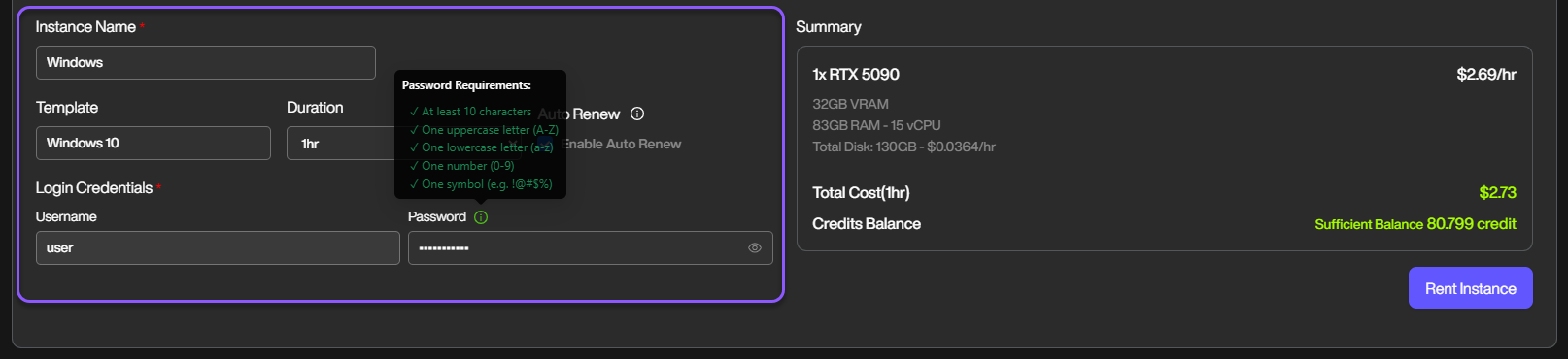
When creating a new Windows Instance on Pictor, you need to set up your connection credentials to authenticate and access the machine via RDP. Key credentials include:
1. **Username**: Default is set to user (currently, you can't customize it)
2. **Password**: The security key required to access your instance. You must set it following these rules:
* *At least 10 characters*
* *One uppercase letter `(A-Z`)*
* *One lowercase letter `(a-z`)*
* *One number (`0-9`)*
* *One symbol (e.g. `!@#$%`)*
## Connect to Instances via RDP
{% stepper %}
{% step %}
#### **Ensure you have an RDP client**
To connect to your Pictor Windows Instance, you need an RDP client installed on your local machine. The RDP client depends on your operating system:
* **Windows**: You do not need to install an RDP client. **Remote Desktop Connection** is built-in and ready to use.
* **macOS**: You must install a client. We recommend the [Windows App](https://apps.apple.com/us/app/windows-app/id1295203466?mt=12), available on the App Store.
* **Linux**: You must install a client. We recommend clients such as Remmina or KRDC.
{% endstep %}
{% step %}
#### **Get the instance's RDP information**
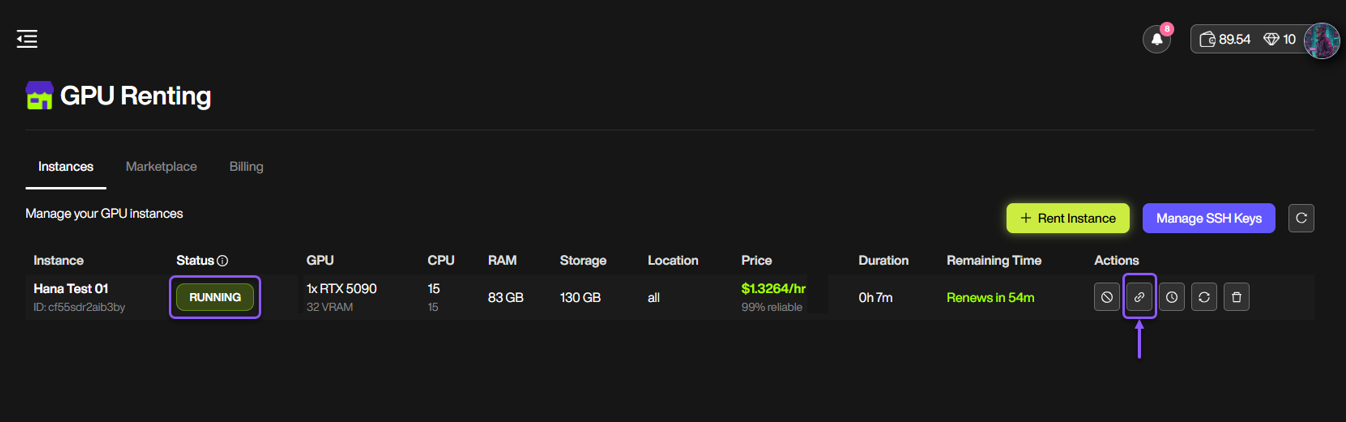
After launching your Windows Instance on Pictor, click the Connect button to get the RDP file.
{% endstep %}
{% step %}
#### Open the RDP file and Enter credentials
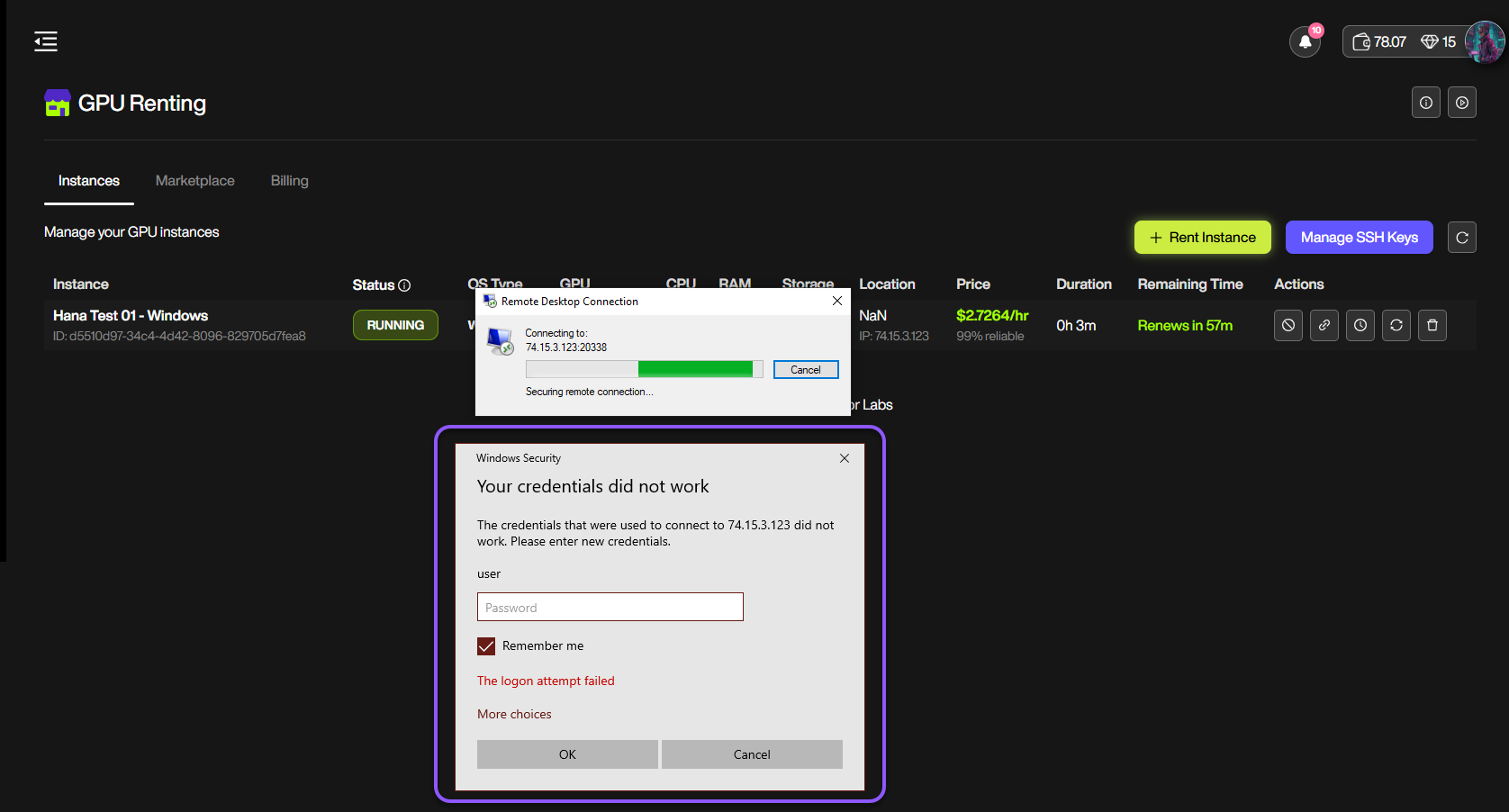
Open the downloaded .rdp file and enter the password you set up during the instance creation.
{% endstep %}
{% step %}
#### Access the remote instance
You are now in the remote instance and can use it to work directly.
{% endstep %}
{% endstepper %}
## Important Notes
Connection to the remote Windows instance via RDP is one at a time. This means that only one user session can be active at any given moment.