> For the complete documentation index, see [llms.txt](https://docs.pictor.network/docs/llms.txt). Markdown versions of documentation pages are available by appending `.md` to page URLs; this page is available as [Markdown](https://docs.pictor.network/docs/services/3d-rendering/get-started/rent-remote-workstation.md).
# Rent Remote Workstation
A step-by-step guide to rendering 3D by renting remote workstations on Pictor
Access high-performance GPUs like the NVIDIA GeForce **RTX 5090, 4090, 3090**, etc. for your 3D projects through a few simple steps:
## Step 1: Create Pictor Account
Go to [app.pictor.network](https://app.pictor.network/) and sign in with your Google account or connect to a crypto wallet (like Aptos's Petra).
Log in to Pictor
## Step 2: Top up Credits
{% hint style="warning" %}
**Note**:
* To rent GPUs on Pictor, you will need credits.
* You can purchase credits by depositing cryptocurrency (USDT via the logged-in wallet) or Fiat Currency (USD via PayPal).
{% endhint %}
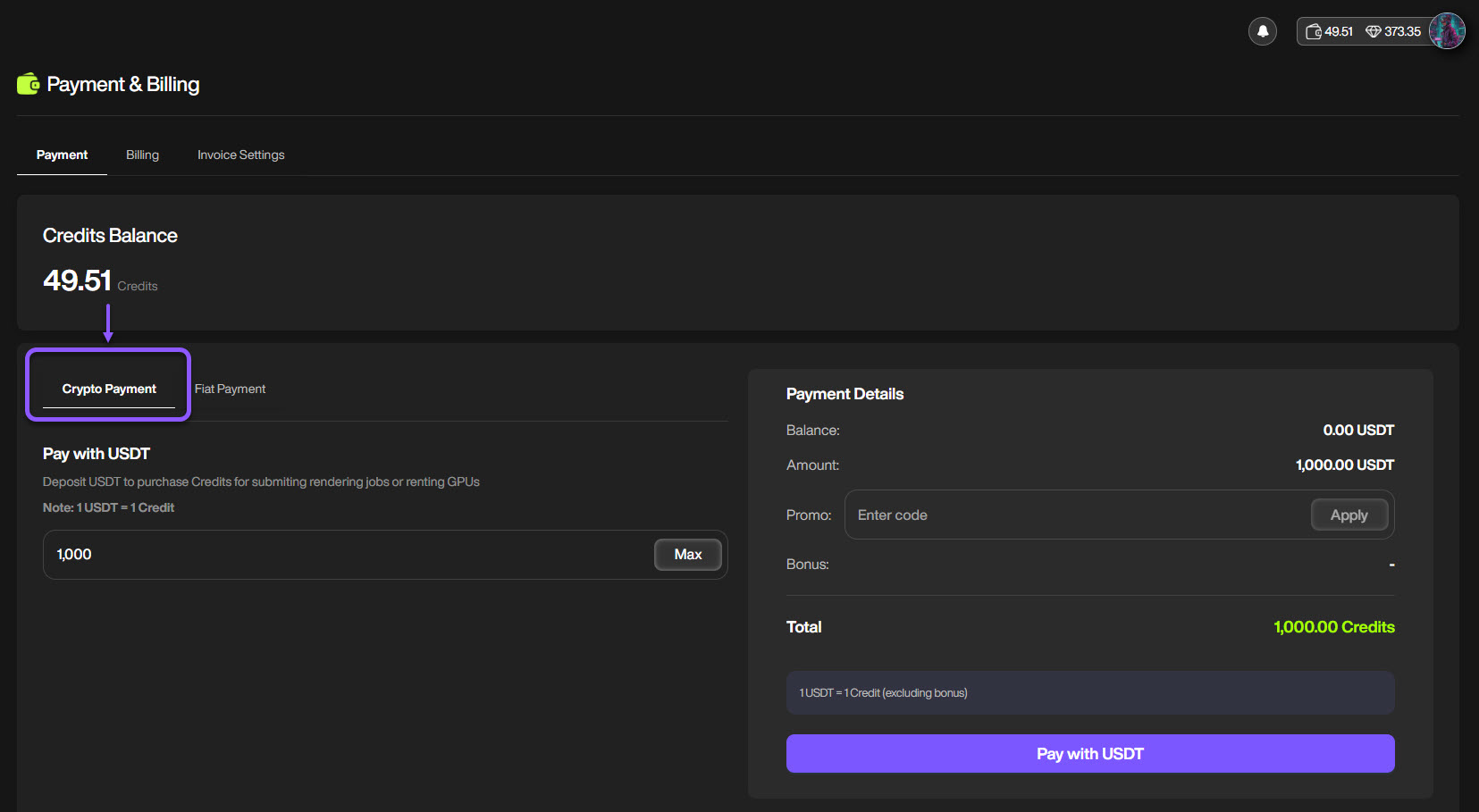
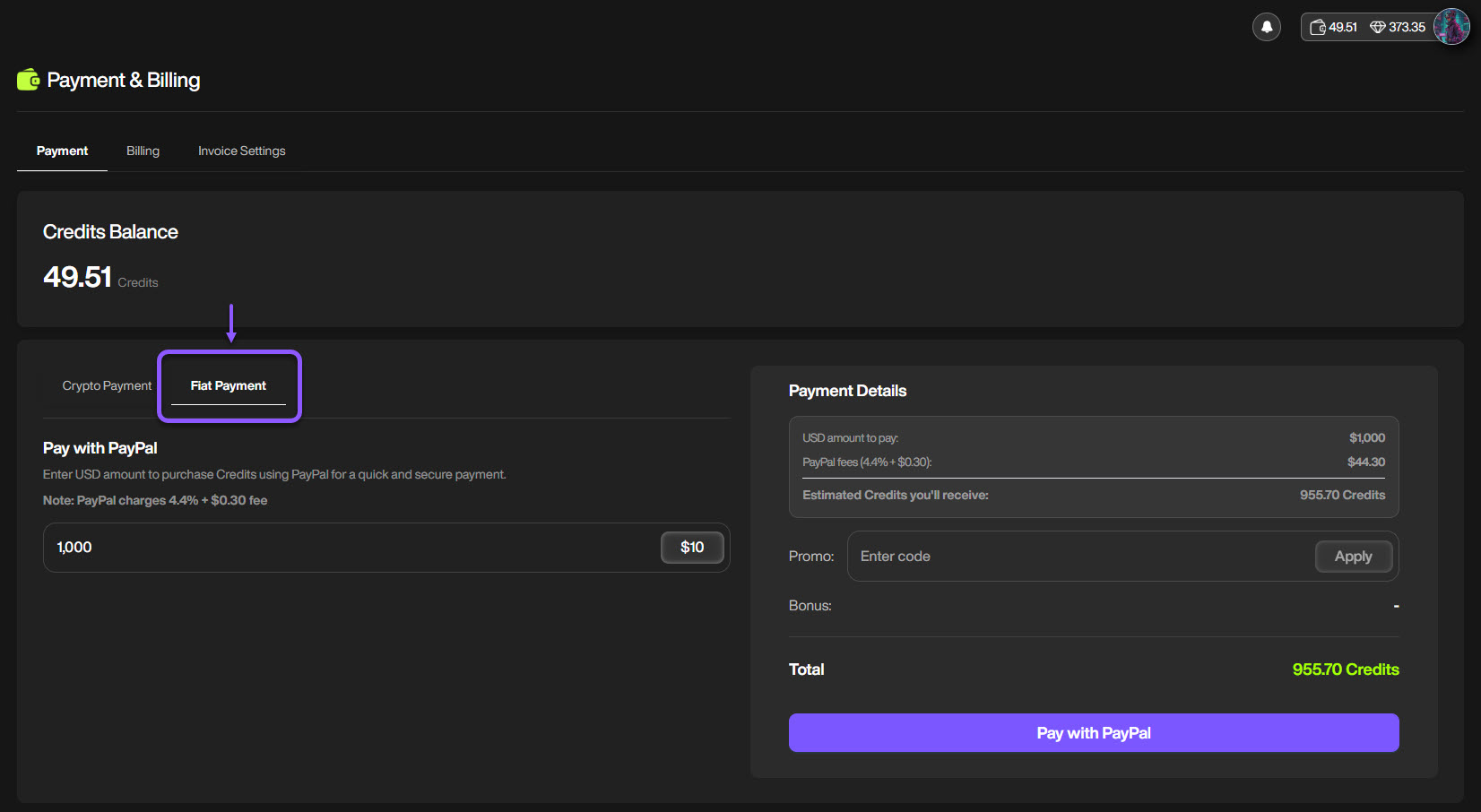
Navigate to the **Payment & Billing** page on the sidebar, and deposit crypto (currently, we support USDT) or Fiat (USD via PayPal) to buy credits.
USDT Deposit
USD Deposit
{% hint style="warning" %}
**Note**:
* The minimum deposit amount is 10 USDT/USD
* 1 USDT = 1 Credit
* PayPal charges **4.4%** the payment amount + **$0.3** fee
{% endhint %}
## Step 3: Create an Instance
Navigate to the **GPU Renting** page on the sidebar >> **Marketplace** tab, and start creating your instance (machine).
{% stepper %}
{% step %}
#### **Select the Operating System**
Select the **Windows** OS type.
Select OS type
{% hint style="info" %}
Currently, we support Windows 10.
You will connect to the instance via **Remote Desktop**.
* If you are using a Mac, please install the [**Windows App**](https://apps.apple.com/us/app/windows-app/id1295203466?mt=12) (formerly known as Remote Desktop) to access our remote Windows machine.
* If you are using Windows, the **Remote Desktop Connection** app is already installed.
{% endhint %}
{% endstep %}
{% step %}
#### **Select Hardware Specs**
* Select a GPU model that you want to rent.
* Customize the GPU count and storage for the instance (if needed).
Customize hardware specs
{% endstep %}
{% step %}
#### Configure Rental Settings
* Add a name for your instance
* Select the rental duration
* Enable/disable the Auto Renewal feature
* Set up the password to access the remote instance
Configure Rental Settings
{% endstep %}
{% step %}
#### Rent the Instance
Review all the settings in the Summary section, and click `Rent Instance`
Review rental settings
Then, confirm to create it.
Confirm to rent the instance
{% hint style="warning" %}
**Note**:
1. **Auto-Renew:**
• **Enabled:** Instance automatically renews for the same duration when it expires
• **Disabled:** Instance will be terminated at the end of the duration period
2. **Storage Fee:**
• **$0.00028/GB/hour**.
• This fee is charged regardless of the instance status (running or paused), and will only stop once the instance has been completely deleted (terminated).
{% endhint %}
{% endstep %}
{% endstepper %}
## Step 4: Connect to Instance
{% stepper %}
{% step %}
Once your instance is created, it will appear in the **Instances** tab.
{% hint style="info" %}
The instance may take approximately 5 to 10 minutes to start.
{% endhint %}
{% endstep %}
{% step %}
Once the status displays **Running**, click the this button to Download RDP file button.
{% endstep %}
{% step %}
Connect to the instance
* Open the RDP file and enter the password you set up during Step 3 to access the remote machine.
Enter your Remote Desktop password
* You are now on the remote machine.
Remote machine window
* Start installing software, renderers, plugins, and other tools as you want.
* Transfer or get your project files, and then you can start rendering directly.
* Once the rendering is completed, transfer the outputs back to your personal computer/cloud storage services, etc.
{% endstep %}
{% endstepper %}
## Step 5: Delete the Instance
After rendering is complete and you have received all the render outputs, remember to delete the instance.
{% hint style="warning" %}
**Important notes**:
Deleting the instance will remove all installed software and data. You will no longer have access to the instance, so ensure you retrieve all the data you need.
{% endhint %}
From the same **Instances** tab, you also have other options to manage the instances:
* Stop/start the instance
* Extend rental time
* Disable/enable auto-renew
* Delete the instance
👉 Learn how to [Manage Instances](https://docs.pictor.network/docs/services/gpu-renting/managing-instances) on Pictor.

.png?alt=media&token=3305da06-1eab-40d5-b84b-edff64356e5b)
.png?alt=media&token=972e9a52-164a-4936-94db-3aa2b651a540)
.png?alt=media&token=78aa0343-d207-4dca-b612-ef7d9ef96ef3)
.png?alt=media&token=5dcd704c-578b-44a4-84e3-156ae4e98d4e)
.png?alt=media&token=d785f425-7c1d-4963-864e-798b9f31c4da)
.png?alt=media&token=b36340e7-843b-455a-a81d-a92b22efa7c2)
.png?alt=media&token=8aec74ce-5f80-4229-a7c7-d865331e2fd1)
.png?alt=media&token=2e1d1c13-3bc7-4c98-85cf-03ae0e12f65a)
.png?alt=media&token=5e259cb4-381c-4c6d-b844-1783187ae4db)